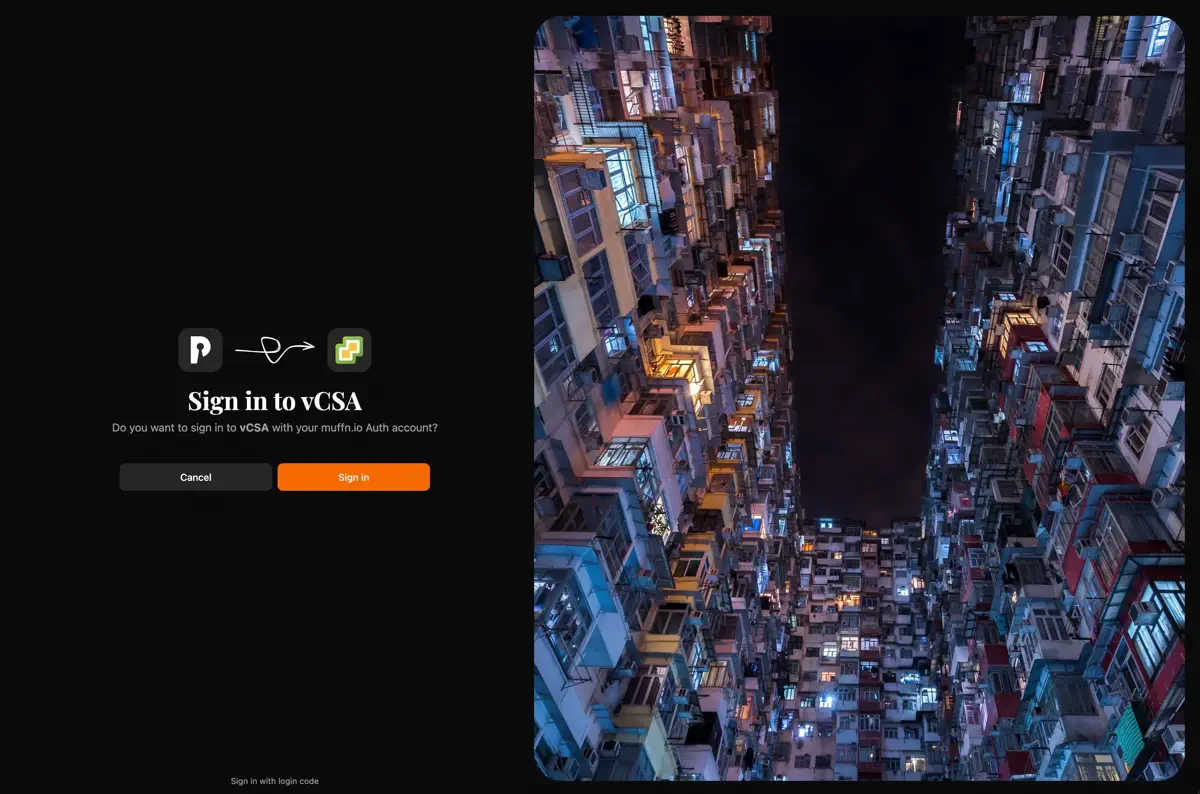

🎬 Intro #
Pocket ID is a lightweight, self-hosted OIDC provider that’s perfect for homelabs. It’s simple, it’s clean, and it doesn’t try to be everything to everyone. What it doesn’t have, however, is SCIM support and that’s where things get a bit spicy when integrating with vCenter Server.
vCenter’s Identity Federation relies on SCIM (System for Cross-domain Identity Management) to automatically provision users from your identity provider. When a user authenticates via Pocket ID, vCenter receives a unique identifier (the ExternalId) and looks it up in its Identity Broker. The issue here is that if there is no matching user, access will be denied.
Since Pocket ID doesn’t speak SCIM (in the way that we need it to), we need to manually create these user entries ourselves.
🔹 Quick OIDC Setup Overview #
As an overview, here’s the high-level setup. In Pocket ID, create an OIDC client with:
| Setting | Value |
|---|---|
| Name | vCSA (or whatever you like) |
| Callback URL | https://<vcenter-fqdn>/federation/t/CUSTOMER/auth/response/oauth2 |
| Public Client | Disabled |
| PKCE | Disabled |
Then in vCenter (Administration → Single Sign On → Configuration → Identity Provider), use the PingFederate template and provide:
- Directory/Domain Name: Your chosen domain (e.g.,
id.muffn.io) - Client Identifier: From Pocket ID
- Shared Secret: From Pocket ID
- OpenID Configuration URL:
https://<pocket-id-fqdn>/.well-known/openid-configuration
You can find more details in the Brodcom documentation.
🔧 Prerequisites #
Make sure you’ve got the following sorted:
- SSH access to vCenter Server Appliance (VCSA) - You’ll need root access to the appliance
- Administrator credentials - Usually
administrator@vsphere.local - Pocket ID configured in vCenter - As an external identity provider
- User assigned in Pocket ID - The user must be in the correct group to access the vCenter OAuth client/application
🔹 Understanding the Domain #
The domain you configured in vCenter’s Pocket ID settings is important. This becomes the “realm” for your federated users. In my case:
- Domain:
id.muffn.io - Users are registered as:
username@id.muffn.io
This domain doesn’t have to match anything in Pocket ID itself, it’s purely a vCenter construct for organising federated users. Just make sure you use it consistently throughout the setup.
📖 The Process #
The provisioning process has three steps:
- Get the ExternalId - Capture the unique identifier Pocket ID sends for the user
- Provision the User - Register the user in vCenter’s Identity Broker (script or manual)
- Assign Permissions - Grant the user access to vCenter resources
🔑 Step 1: Get the User’s ExternalId #
The ExternalId is a unique identifier that acts as the bridge between Pocket ID’s user database and vCenter’s Identity Broker. We need to capture it from a failed login attempt.
- Open an incognito/private browser window
- Navigate to your vCenter URL and click “Sign in with SSO”
- Complete the authentication in Pocket ID
- You’ll get an “Access Denied” error
Now SSH into your VCSA and extract the ExternalId:
grep -i "externalid" /var/log/vmware/vc-ws1a-broker/federation-service.log | tail -5 | \
  sed 's/\([0-9-]*T[0-9:]*\).*ExternalId=\([a-f0-9-]*\).*domains: \[\([^]]*\)\].*/\1 | \3 | \2/'
Example output:
2026-02-04T15:05:23 | id.muffn.io | d0e97cc3-ff12-42fd-b4ba-6a30626bd50eThis shows the timestamp, domain, and ExternalId for each login attempt. Copy the UUID from the most recent entry (last line).
You can optionally use the following to view the full log, as the above command is extracting only the information we need:
grep -i "externalid" /var/log/vmware/vc-ws1a-broker/federation-service.log👤 Step 2: Provision the User #
Now we need to register the user in vCenter’s Identity Broker. Choose your method:
- Option A: Helper Script (Recommended)
- Option B: Manual Method (If you would rather do it manually)
Option A: Helper Script (Recommended) #
I’ve created a simple helper script that automates the API authentication and user provisioning.
Download the script:
curl -sL https://gist.githubusercontent.com/monstermuffin/785e1a7eb4bf5fb40ed2ec1e2b368690/raw/vcenter-scim-helper.sh -o /tmp/vcenter-scim-helper.sh
chmod +x /tmp/vcenter-scim-helper.sh
Add a user:
/tmp/vcenter-scim-helper.sh add-userThe script will prompt you for the username, domain, name, email, and the ExternalId you captured above.
Other commands:
List existing users: #
/tmp/vcenter-scim-helper.sh list-users Delete a user: #
/tmp/vcenter-scim-helper.sh delete-user Once the user is created, skip to Step 3: Assign Permissions.
Option B: Manual Method #
If you prefer to understand what’s happening under the hood, or if the script doesn’t work for your setup, here are the manual API calls. This is exactly what the helper script automates.
2a: Authenticate and Generate Tokens #
First, authenticate to vCenter’s REST API. We need both a session token and a SCIM sync token.
Create a session:
SESSION_ID=$(curl -s -u 'administrator@vsphere.local:YOUR_PASSWORD' \
  --request POST 'https://localhost/api/session' -k | tr -d '"')
Replace YOUR_PASSWORD with your actual vCenter password. Verify it worked:
echo "Session ID: $SESSION_ID"You should see a hex string like 3091331825850d244abdd54bba31ed72. If it’s empty or shows an error like the following, check your credentials.
Session ID: {error_type:UNAUTHENTICATED,messages:[]}Get the Broker Provider ID:
The Identity Broker uses a different ID than the main identity provider:
BROKER_IDP_ID=$(curl -s -X GET \
  "https://localhost/api/vcenter/identity/broker/tenants/customer/providers" \
  -H "vmware-api-session-id: $SESSION_ID" -k | \
  grep -o '"idp":"[^"]*"' | head -1 | cut -d'"' -f4)

echo "Broker Provider ID: $BROKER_IDP_ID"
You should see a UUID like 3750355e-b646-44ed-9ce8-9d8fb66564a7.
Generate the SCIM sync token and URL:
RESPONSE=$(curl -s -X POST \
  "https://localhost/api/vcenter/identity/broker/tenants/customer/providers/$BROKER_IDP_ID/sync-client?action=generate-result" \
  -H "vmware-api-session-id: $SESSION_ID" -k)

SYNC_TOKEN=$(echo "$RESPONSE" | grep -o '"access_token":"[^"]*"' | cut -d'"' -f4)
SCIM_URL=$(echo "$RESPONSE" | grep -o '"scim_url":"[^"]*"' | cut -d'"' -f4)

echo "SCIM URL: $SCIM_URL"
echo "Sync Token: ${SYNC_TOKEN:0:20}..." # Only show first 20
You should see output like:
SCIM URL: https://vcsa.internal.muffn.io/usergroup/t/CUSTOMER/scim/v2
Sync Token: eyJ0eXAiOiJKV1QiLCJh...2b: Register the User via SCIM #
Now send a SCIM-formatted request to register the user with their ExternalId:
curl -k --request POST "$SCIM_URL/Users" \
  --header 'Content-Type: application/scim+json' \
  --header "Authorization: HZN $SYNC_TOKEN" \
  --data '{
    "schemas": ["urn:ietf:params:scim:schemas:core:2.0:User"],
    "userName": "muffin@id.muffn.io",
    "name": {
      "givenName": "Muffin",
      "familyName": ""
    },
    "emails": [{
      "value": "muffn@muffn.io",
      "type": "work",
      "primary": true
    }],
    "externalId": "d0e47cc3-ff12-95fd-b4ba-6a30628bd50e",
    "active": true,
    "urn:scim:schemas:extension:workspace:mfa:1.0": {
      "defaultDomain": "id.muffn.io"
    }
  }'
Let me break down what each field does:
| Field | Description |
|---|---|
userName |
User’s identifier in vCenter. Format: username@domain |
givenName |
First name (for display purposes) |
familyName |
Last name (can be empty) |
emails.value |
User’s email address |
externalId |
CRITICAL - Must match the ExternalId from the logs |
active |
Whether the account is active |
defaultDomain |
Must match the domain configured in Pocket ID settings |
HZN prefix, not Bearer. This tripped me up for longer than I’d like to admit.
A successful response looks something like this:
{
  "schemas": [...],
  "id": "ed8ad55f-cad4-4a5f-8cde-2d2e5676fe4e",
  "externalId": "d0e47cc3-ff12-95fd-b4ba-6a30628bd50e",
  "userName": "muffin@id.muffn.io",
  "displayName": "Muffin",
  "active": true,
  "groups": [{"value": "...", "display": "ALL_USERS"}]
}
Save that id field, you’ll need it if you ever want to delete or modify the user.
Now proceed to Step 3: Assign Permissions.
🔐 Step 3: Assign vCenter Permissions #
Just because a user can authenticate doesn’t mean they can actually do anything. You need to explicitly grant permissions:
- Log into vCenter with
administrator@vsphere.local - Go to Menu > Administration > Access Control > Global Permissions
- Click + (Add)
- Select your domain (e.g.,
id.muffn.io) from the dropdown - Search for your username (e.g.,
muffin) - Assign the Administrator role (or whatever’s appropriate)
- Check “Propagate to children”
- Click OK
🔍 Verification #
To test your work:
- Open a new incognito/private browser window
- Navigate to your vCenter URL
- Click “Sign in with Pocket ID”
- Authenticate with Pocket ID
- You should now successfully log into vCenter!
If you’re still getting errors, check the troubleshooting section below.
📖 Managing Users #
🔹 Listing Users #
Using the script:
/tmp/vcenter-scim-helper.sh list-usersManual method (requires $SCIM_URL and $SYNC_TOKEN from Step 2b):
curl -k -X GET "$SCIM_URL/Users" -H "Authorization: HZN $SYNC_TOKEN" | jq .🔹 Removing a User #
Using the script:
/tmp/vcenter-scim-helper.sh list-users      # Get the user ID first
/tmp/vcenter-scim-helper.sh delete-user
Manual method:
curl -k -X DELETE "$SCIM_URL/Users/" -H "Authorization: HZN $SYNC_TOKEN" Don’t forget: Also remove permissions in vCenter UI at Menu > Administration > Access Control > Global Permissions.
🔹 Modifying a User #
It’s easier to delete and re-add a user than to modify them via SCIM:
- Delete the user (see above)
- Re-add them with the new information
For permission changes only, just edit them in the vCenter UI, there is no need to touch SCIM.
🛠️ Troubleshooting #
🔸 “You’re not allowed to access this service” (from Pocket ID) #
The user isn’t assigned to the correct group in Pocket ID that has access to the vCenter OAuth client. Fix it in Pocket ID’s admin interface.
🔸 “Access Denied - Unable to authenticate the user” (from vCenter) #
Either the user doesn’t exist in vCenter’s Identity Broker, or the ExternalId doesn’t match.
Check the logs:
tail -100 /var/log/vmware/vc-ws1a-broker/federation-service.log | grep -i "externalid"Compare the ExternalId in the logs with what you registered. If they don’t match, delete the user and re-register with the correct ExternalId.
🔸 “Unable to login because you do not have permission” #
User is authenticated but has no vCenter permissions. Assign permissions via the UI (see Step 5 above).
🔸 User shows up with wrong domain #
The defaultDomain in your SCIM registration doesn’t match what’s configured in vCenter. Delete the user and re-register with the correct domain.
🔸 ExternalId keeps changing #
This can happen if:
- User is removed and re-added in Pocket ID
- User’s group membership changes in Pocket ID
- Pocket ID configuration is modified
Unfortunately, you’ll need to capture the new ExternalId from the logs and re-register the user.
🎉 Fin #
Hopefully this has helped you get Pocket ID working with vCenter.
Thanks for reading! ~muffn

Sony A7R III + Sigma 24-70mm f/2.8 DN DG ART @ 70mm, f/2.8, 1/2000s, ISO 500